Benachrichtigungen · 5 min read · Jan 09, 2026
Wie man verzögerte Benachrichtigungen auf Android behebt?
Bothered by delayed notifications on your Android phone? Then check these tips and tricks to help you easily fix that problem. Notification delayed is notification missed. It means missing out on important calls, updates, and reminders. If you are a productive and busy individual, this will affect your work.
The delayed notifications issue on Android happens due to the forced closing of apps. Having the battery and data saver enabled on the device will limit some apps when it is running low on juice or data. As a result, you miss out on notifications. A common reason can be enabling the Do not disturb mode, which pretty much stops all the incoming notifications.
For some apps, if the cache is full of junk data, then that may cause the app to behave erratically. This may cause you to miss out on important notifications. Other factors like adaptive Battery and adaptive notifications can filter out notifications for apps depending on your use. In the process, you may miss notifications from an app you seldom use.
Beste Tipps zur Behebung verzögerter Benachrichtigungen auf Android
Let us begin the troubleshooting. Here are the workarounds that you can try.
1. Adaptive Batterie auf Android deaktivieren
The adaptive Battery tracks your app use through AI. It does so to utilize Battery for the apps that you access frequently. This, on the other hand, limits other apps, and you end up missing notifications from them.
To disable the adaptive Battery,
- Open the Einstellungen App.
- Then tap on Batterie.
- Under that, go to Batterieoptimierung and tap on it.
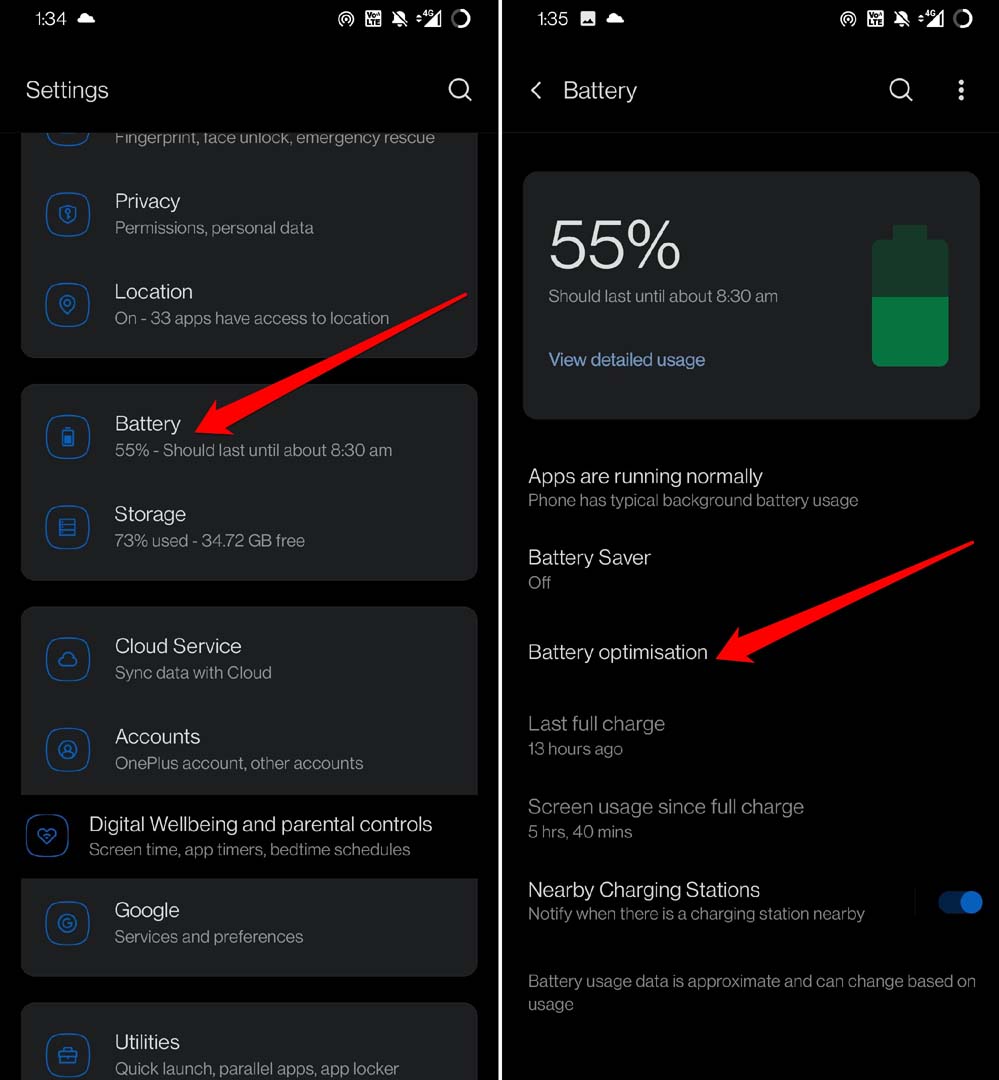
- Then select any particular app.
- Select Nicht optimieren.
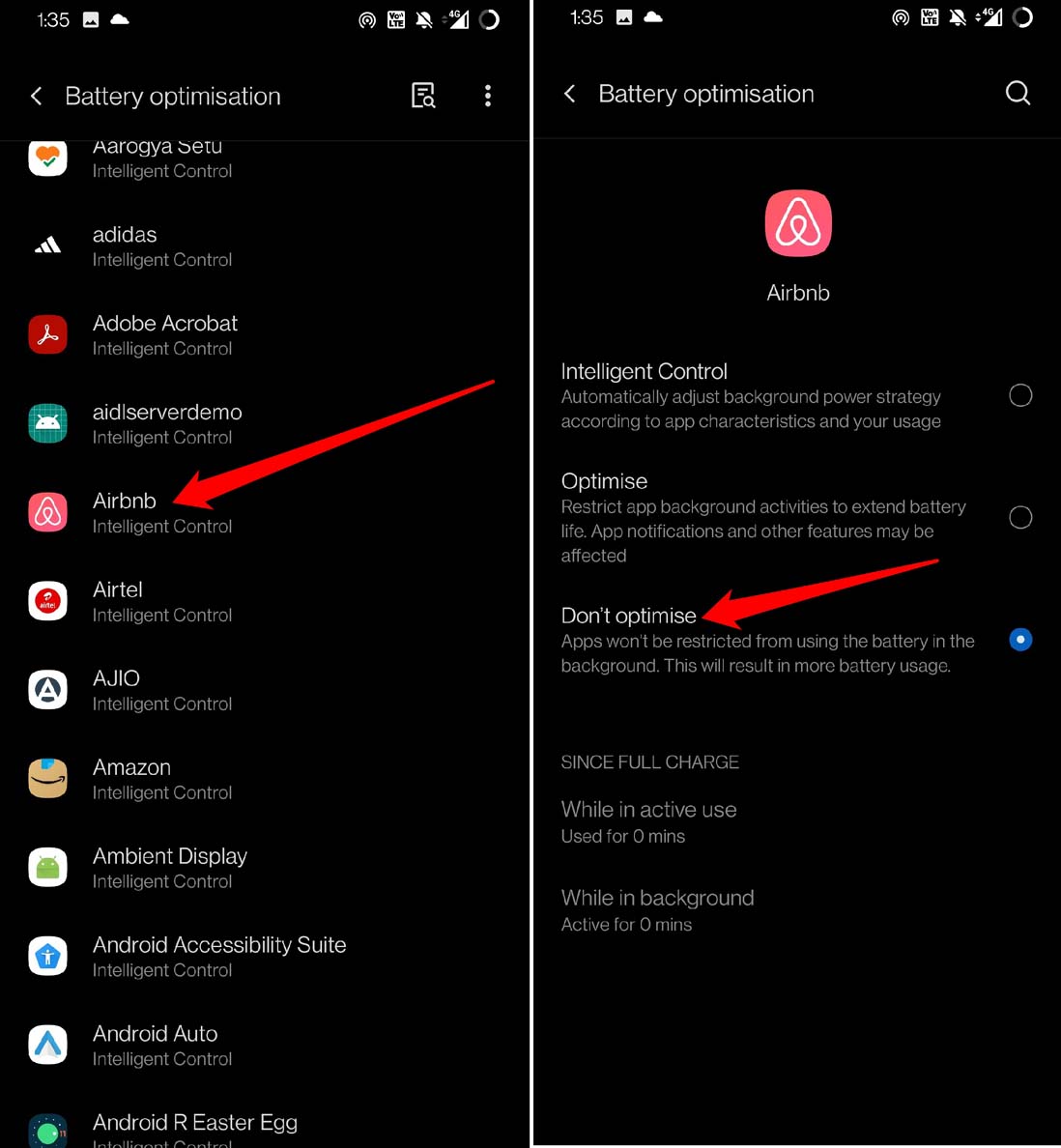
Now, the app won’t be restricted, and you won’t face the delayed notification issue. You can do the above steps for all other apps installed on your device.
2. Ist Ihre Internetverbindung stabil?
You need to check that your internet connection is active and has not been disrupted. Often when the network is unstable, then it takes a lot of time for the notification to appear. You can enable and disable flight mode, but notifications won’t appear swiftly unless the network connectivity is robust.
To fix the issue, You can reset your WiFi network or connect to some other network that may be available. Try to restart your Android device as well. Often when the network is randomly showing issues, restarting the device fixes the network.
3. Cache der konfliktierenden Apps leeren
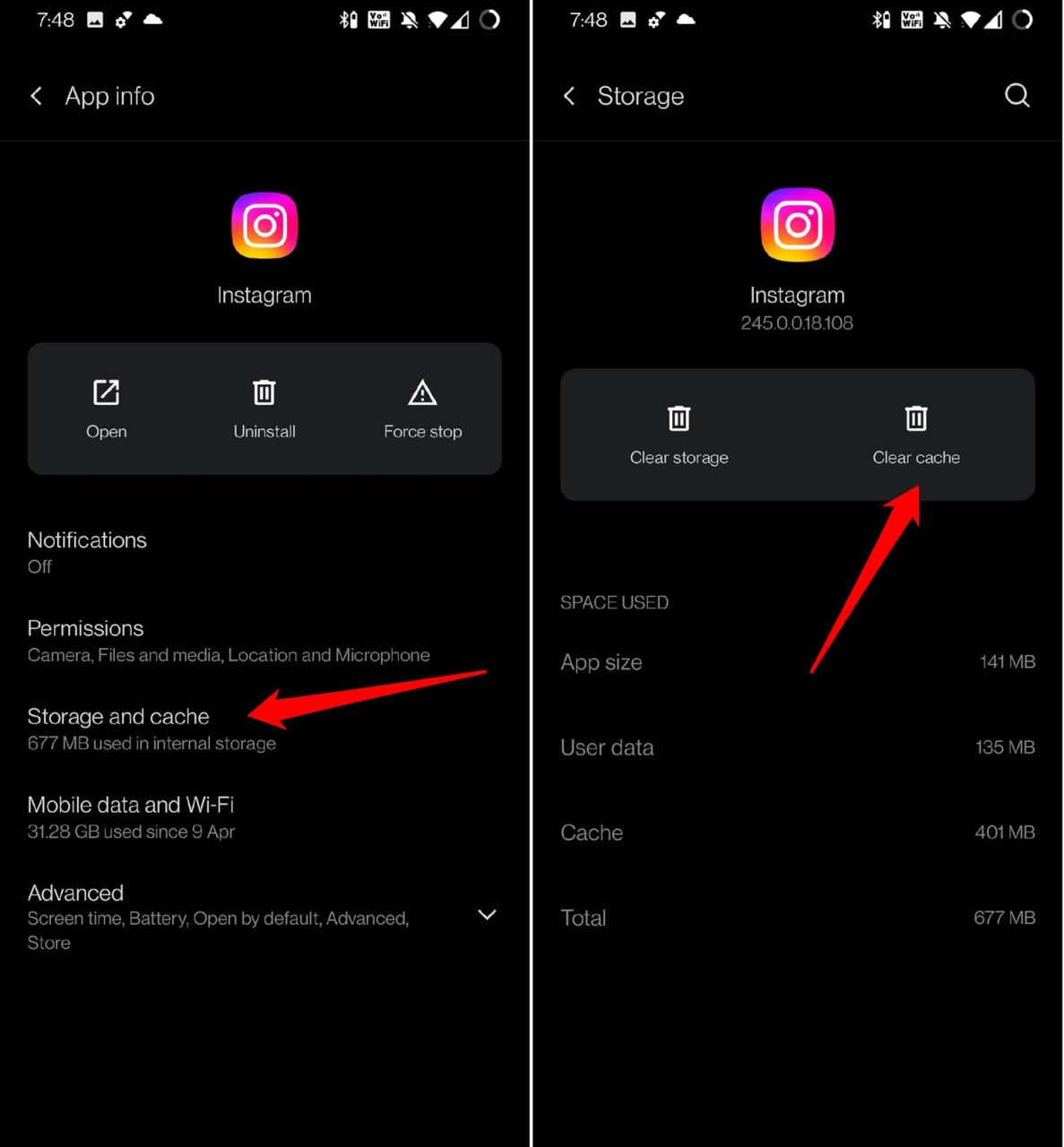
For any app on which you are experiencing delayed notification, you can try to clear the cache of that app.
- Long press on the app icon.
- From the shortcut menu, select App-Info.
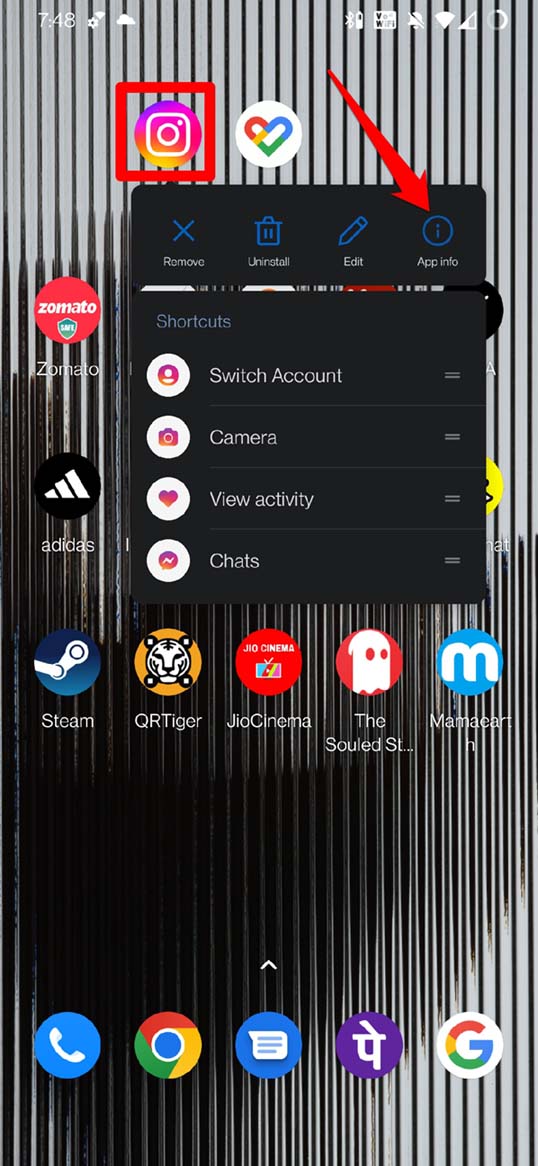
- Under App info, tap on Speicher & Cache.
- Then select Cache leeren.
4. Apps nicht zwangsweise schließen
When you force close an app, the background sync for that app stops. Until you reopen the app, new notifications for that app won’t show up. So, avoid force-closing apps from the app cards. Also, refrain from force closing the app when Android reminds you to do so due to the app not being used and consuming Battery.
5. WiFi-Stromsparmodus deaktivieren
As the name suggests, this feature will limit the WIFi network based on how you use the apps. Accordingly, it will disrupt the notifications of the apps. So, you either end up getting delayed notifications or miss out on them altogether. Here is how to disable the WiFi power-saving mode on your Android device.
- Go to the device settings.
- Tap on WiFi & Netzwerk.
- Next, tap on WiFi.
- Under the settings, you should see an option, WiFi-Stromsparmodus.
- Tap the switch beside the option to disable it.
Hinweis: In einigen Geräten ist diese Funktion möglicherweise nicht vorhanden.
6. Stören Sie nicht deaktivieren
Often people enable DND or Do Not Disturb and forget to turn it off if they are setting it manually. You have to turn that off to start receiving notifications from all apps.
- Go to the Einstellungen.
- Tap on Töne und Vibration.
- Go to Nicht stören und tippen Sie darauf.
- Tippen Sie auf den Schalter, um die Funktion zu deaktivieren.
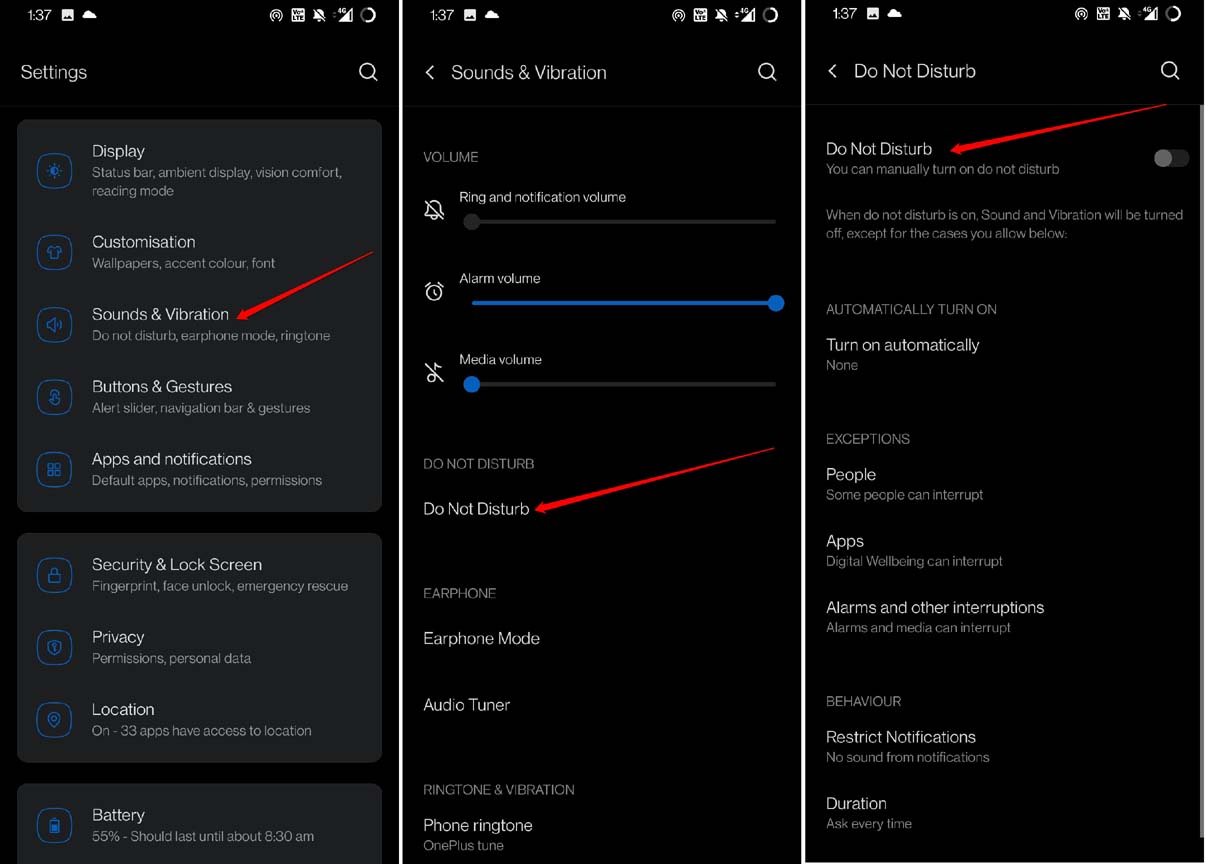
Alternatively, you can access the Do Not Disturb option from the pull-down notification center and disable it from there.
7. Datenverbrauchsbeschränkung für Apps entfernen
When you set data restrictions on an app, once the stipulated data quota is consumed by it, Android OS will limit the app’s functionality. This often results in delayed notifications. So, you can remove the data usage restriction for that app.
- Long press on the concerned app icon and select App-Info.
- Tap on Mobile Daten und WiFi.
- Under the settings, tap on the switch and disable Unbeschränkte Datennutzung.
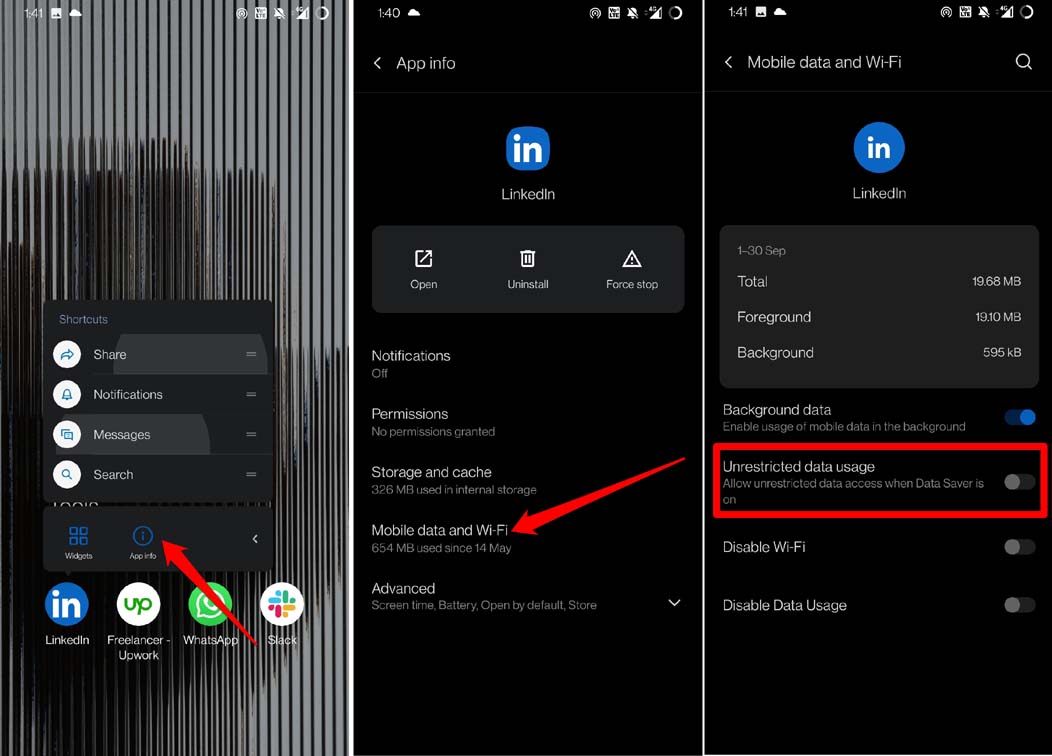
You can repeat the above steps for any apps on which you are facing the delayed notification issue.
8. Energiesparmodus auf Ihrem Android deaktivieren
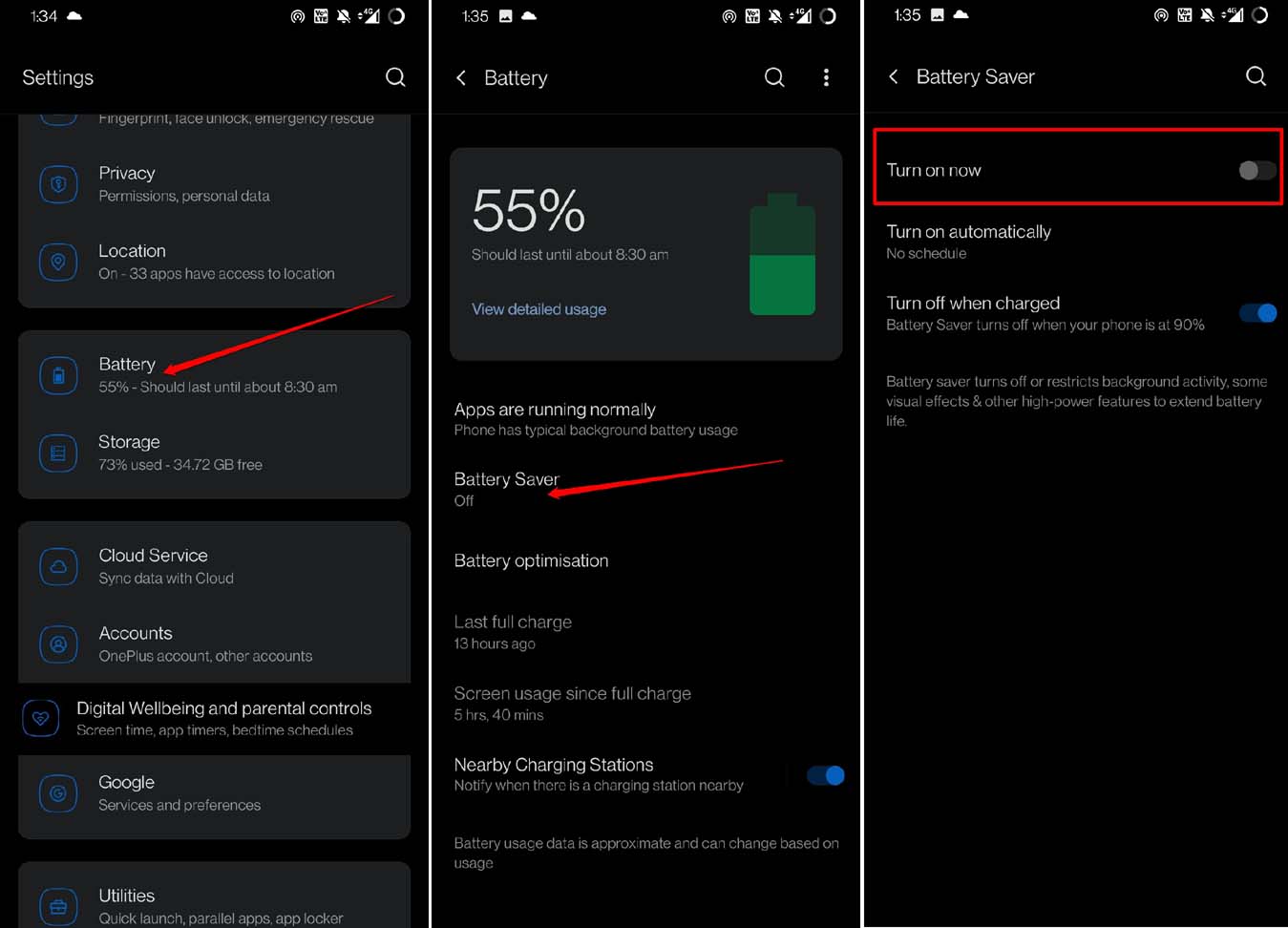
You may also disable the battery saver collectively for all the apps installed on your Android device. If you are not upto individually tweaking the adaptive Battery for all the apps, then this method will come in handy.
- Open the Android Einstellungen.
- Tap on Batterie.
- Next, tap on Energiesparmodus.
- Tap the switch to disable the feature.
Fazit
The issue of delayed notification on Android devices is primarily due to various system settings that are set by default or that you turn on. So, as per your requirement, you can use some of these troubleshooting tips and tweak the settings to resume the flow of notifications on your Android phone.
If you’ve any thoughts on Wie man verzögerte Benachrichtigungen auf Android behebt?, then feel free to drop in below comment box. Also, please subscribe to our DigitBin YouTube channel for videos tutorials. Cheers!
Erhalte neue Beiträge in deinem Posteingang.
Kein Spam. Jederzeit abmelden.